How to Create an Account in Play Together: Easy Beginner Guide
Creating an account in Play Together is the first step toward saving your progress, customizing your character, meeting other players, and enjoying the game’s social features. Depending on the version and login options available on your device, you may be able to start with a guest account or use a supported login such as Google, Facebook, Apple, or a VNG-related account.
For new players, the easiest approach is to open Play Together, choose the available login option, and complete the on-screen instructions. If you start with a guest account, it is a good idea to protect or link it before spending a lot of time in the game. This guide explains how to create an account in Play Together, which login methods may be available, how guest accounts work, and what you should do to keep your game progress safe.
What Is a Play Together Account?
A Play Together account connects your game progress with a login method so you can access your character and saved data. Your account is associated with the game profile you use while playing, including your character, items, activities, and other progress. Play Together VNG’s published guidance explains that players can use different login methods depending on the available version and service. These can include Guest, Zing ID, Facebook, Google, and Apple-related login options. The exact options can vary depending on your device, region, and the version of Play Together you are using.
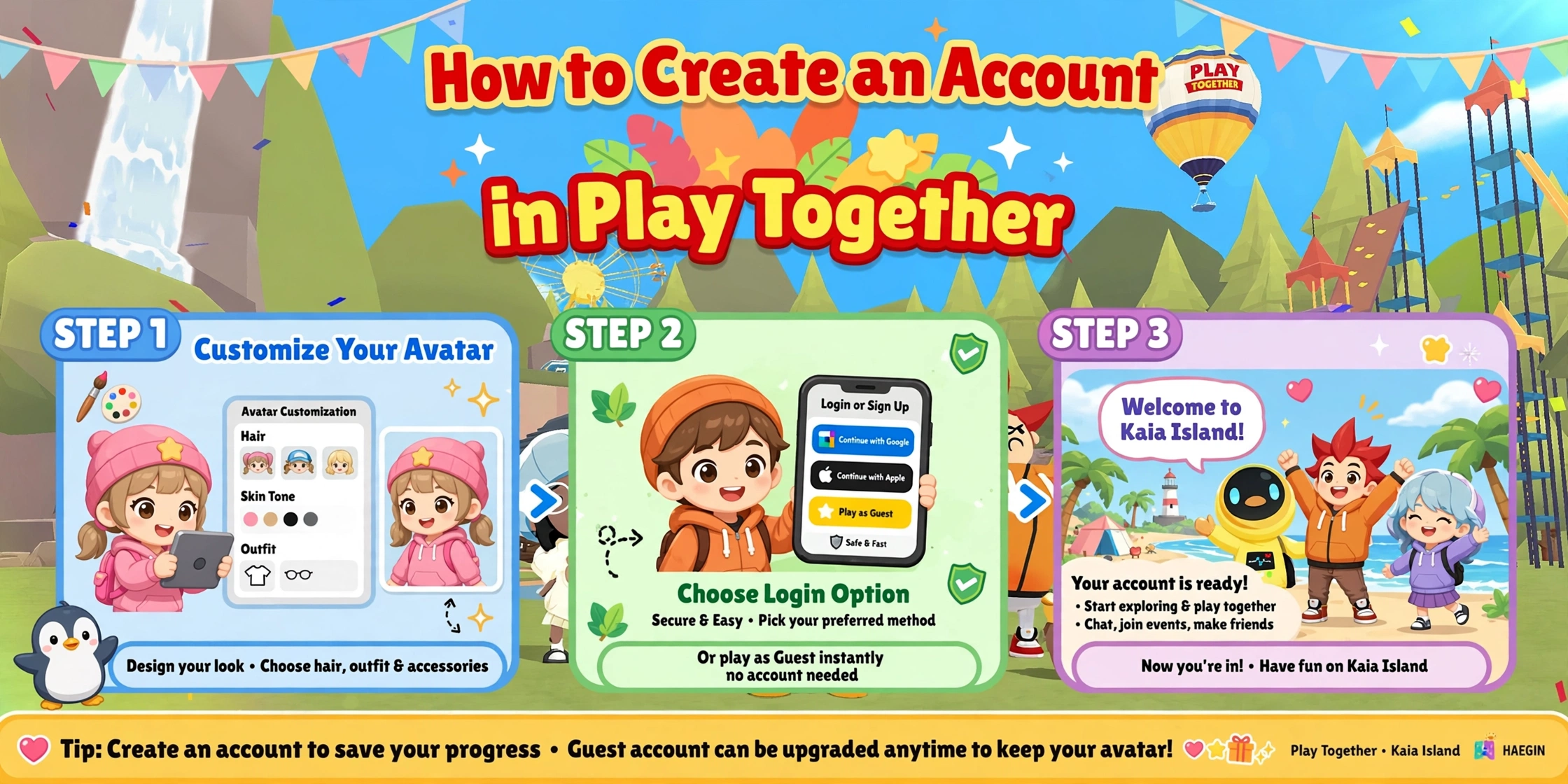
How to Create an Account in Play Together
The account creation process is straightforward. You generally don’t need to complete a complicated registration form before entering the game.
Step 1: Install Play Together
First, install the appropriate Play Together version on your device. If you’re using Android, make sure you have a compatible version of the game installed. You can also check the Play Together information and download resources available on CodePlayTogether.codes before starting. For iPhone or iPad, use the supported iOS version available for your device.
Step 2: Open Play Together
Launch the game after installation. The first screen will normally take you toward the available login or account options. Depending on your version, you may see options such as Guest, Google, Facebook, Apple, or another supported account method.
Step 3: Choose Your Login Method
Choose the method you want to use for your Play Together account. Your available options can depend on the version of the game. VNG’s published Play Together information documents several login methods, including Zing ID, Facebook, Apple ID and Guest/Play Now accounts. If you’re looking for the quickest way to enter the game, a Guest/Play Now option may be available. However, if you want better account protection, using a supported linked login is generally the better choice.
Step 4: Follow the On-Screen Instructions
After selecting your preferred login option, follow the instructions shown by the game. For a social login, you may need to authorize the account before returning to Play Together. For a guest account, the game may allow you to enter directly and create your character without completing a traditional registration process.
Step 5: Create Your Character
Once you’re inside the game, you can begin setting up your character. Depending on the current game version, you can customize elements such as your appearance, clothing, and other character options. Your character becomes the main profile you use while exploring the Play Together world.
Step 6: Complete the Initial Setup
Follow the introductory instructions and complete any initial tasks shown on the screen. This is also a good time to understand the game’s menus, settings, friends system, mini-games, and other basic features.
Step 7: Protect Your Account
If you started with a guest account, don’t simply leave it unprotected. Play Together VNG has specifically published guidance explaining how guest accounts can be protected by linking an email address and setting a password. This can be particularly important if you have already built up meaningful game progress.
Can You Create a Play Together Account With a Guest Login?
Yes, a Guest or Play Now option may be available in Play Together VNG. A guest account lets you enter the game without going through a traditional account registration process first. VNG’s own guidance describes the Play Now/Guest option and provides instructions for protecting that account with an email address and password. However, there is an important difference between starting as a guest and protecting the account. A guest account that has not been properly protected can be more difficult to recover if something happens to the device or game data.
How to Protect a Guest Account in Play Together
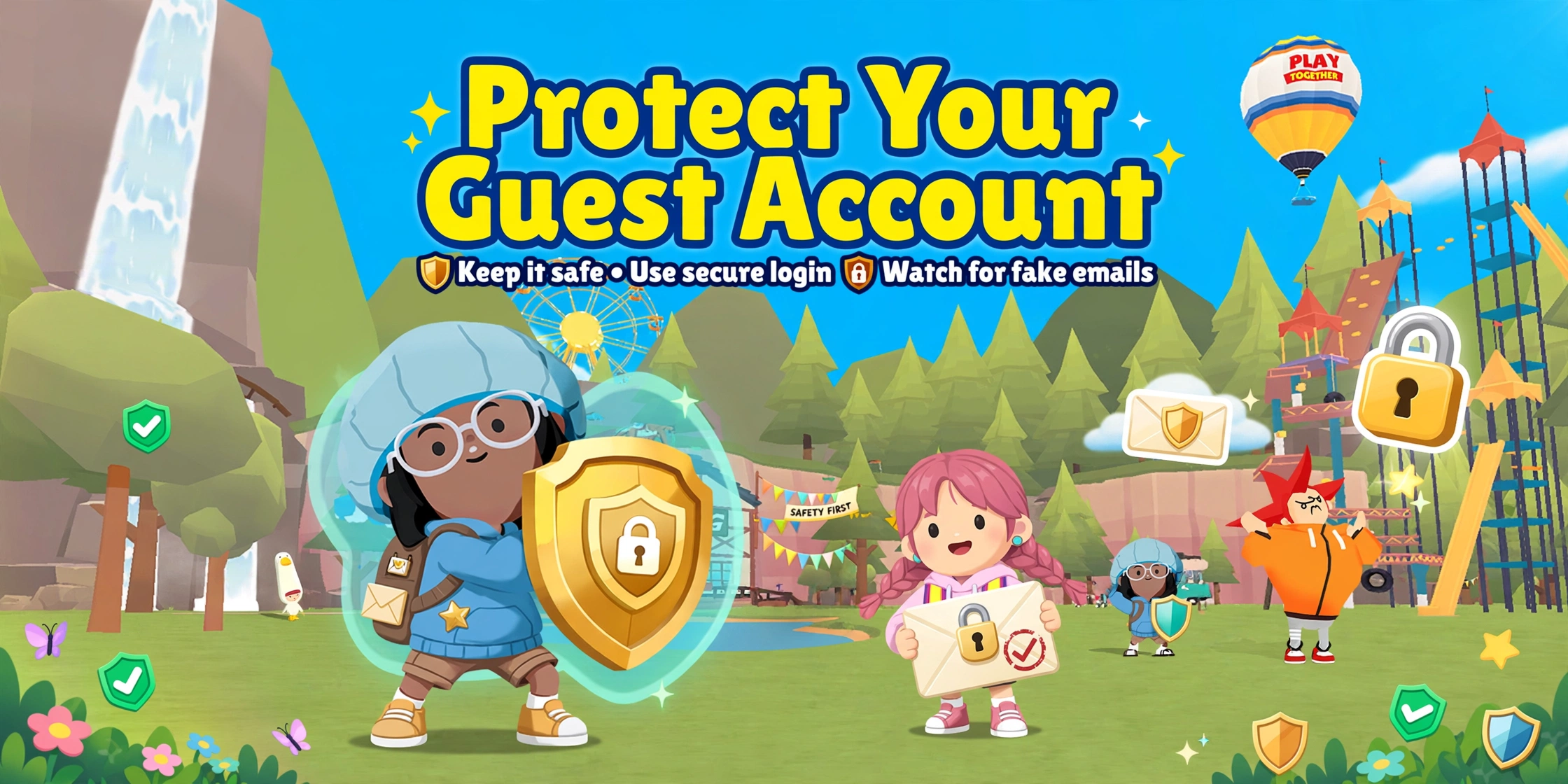
If you’ve started playing as a guest, protecting the account should be one of your first priorities. According to the published Play Together VNG instructions, the guest account can be protected by providing an email address and creating a password.
⚠️ Warning: Protect Your Guest Account First
If you started as a guest, protect your account BEFORE uninstalling the game or switching devices. An unprotected guest account is tied to your device and can be very difficult to recover if the game data is lost.
Basic Process
- Start Play Together using the Guest/Play Now option.
- Follow the account protection prompt when it appears.
- Enter an email address that you can access.
- Create a password for the game account.
- Confirm the information.
- Keep your login details secure.
The password used for protecting the guest account is not necessarily the same thing as your email account password, so don’t assume they are identical. VNG specifically notes that the password created during guest-account protection is a game-account password.
Why You Should Link Your Play Together Account
Creating an account is only part of the process. Protecting the account is equally important. Linking or protecting your account can help when you change devices, reinstall the game, or need to recover your game profile. VNG’s account-protection guidance says that updating account information can improve account security and make it easier for support to identify and assist with an account when necessary.
Benefits of a Protected Account
- Better protection for your game progress
- Easier account recovery
- More convenient access after changing devices
- Reduced risk of losing your character and progress
- Easier account verification when support is required
How to Log In to Play Together After Creating an Account
Once your account has been created or linked, logging in is usually simple. Open Play Together and select the login method associated with your account. For example, if your account was connected through a supported Google, Facebook, Apple, Zing ID, or protected guest method, choose the corresponding option and complete the required authentication. VNG’s published terms explain that Play Together VNG requires an account to log in and identifies supported account/login methods such as Zing ID and linked accounts. playtogether.vnggames.net.
Can You Use Google or Facebook to Log In?
Depending on the current Play Together VNG version and available login options, Google and Facebook may be supported. VNG’s published documentation lists linked accounts such as Google and Facebook among available login methods, while other official Play Together guidance also references Facebook and Apple ID. Because login options can change between versions and regions, always check the options displayed directly inside your installed game.
ℹ️ Note: Login Methods Vary by Version
VNG documents several login methods including Zing ID, Facebook, Google, Apple ID, and Guest/Play Now. The exact options shown in your game depend on your device, region, and game version. Always use the login methods displayed inside your installed game.
Can You Use Apple ID for Play Together?
Apple ID may be available as a login method for supported Play Together VNG accounts. This is especially relevant for players using an iPhone or iPad. VNG’s published account guidance specifically references Apple ID as one of the supported account/login options. If Apple login isn’t displayed in your current version, don’t try to force another login method. Use one of the options actually provided by the game.
What Happens If You Delete Play Together?
Deleting the game does not always mean your properly linked account has disappeared. The important distinction is whether your game account has been connected or protected. VNG specifically explains that a protected guest account can be recovered after reinstalling the game or moving to another device by using the account-recovery process. That’s why it is much safer to protect your guest account before uninstalling the game.
How to Recover a Play Together Guest Account
If you previously protected your guest account and later reinstall the game, you may be able to recover it. The published VNG process involves:
- Open the Play Together login screen.
- Select Other Methods if available.
- Choose the option to restore the guest account.
- Enter the email and password previously used to protect the account.
- Confirm the details.
- Wait for the account to be restored.
VNG’s official guide documents this recovery process for protected guest accounts. If you never protected the guest account, recovery may be considerably more difficult.
What If You Forget Your Play Together Password?
If you’ve protected a guest account with an email and later forget the password, the recovery process can include using the Forgot Password option. VNG’s published instructions explain that the recovery flow can send a password-reset link to the email associated with the protected guest account. Make sure you still have access to the email address connected to the account.
My Experience Creating a Play Together Account
When setting up a new Play Together account, I recommend keeping the process simple at first and paying attention to the login method you select. The biggest mistake a new player can make is spending hours customizing a character, collecting items, and progressing through the game while treating the account like a temporary guest profile. Once the game progress starts becoming important, I would protect the account immediately. I also recommend writing down which login method you used. For example, if you chose Google or Facebook, remember that specific account. If you used a protected guest account, keep the recovery email accessible. This small step can save a lot of frustration later, especially if you change phones or reinstall the game.
Common Play Together Account Problems
Play Together Doesn’t Show My Login Option
Login options can depend on the game version, device, region, and current service configuration. Check the available options on your login screen instead of assuming that every method will always be available.
My Guest Account Is Not Showing
If you previously used a guest account, make sure you are using the correct recovery method and the same account information that was used to protect it.
I Changed My Phone
If your Play Together account was properly linked or protected, use the same login method on the new device. For an unprotected guest account, moving progress to another device can be much more difficult.
I Reinstalled the Game and Lost My Progress
First, check whether your progress was connected to a login account. If it was a protected guest account, use the account-recovery option described above. If it was never linked or protected, recovery may not be possible.
Tips for Keeping Your Play Together Account Safe
✅ Tip: Keep Your Account Safe
Follow these safety tips to protect your Play Together account and game progress. Using a protected or linked account is the best way to keep your character and items safe.
- Use an email account that you can access.
- Don’t share your Play Together password.
- Don’t give your login details to another player.
- Avoid signing into a guest account on someone else’s device.
- Protect your guest account before uninstalling the game.
- Remember which login method you used.
- Keep your recovery email accessible.
- Use accurate account information when the game asks for it.
- Don’t enter your credentials on suspicious websites.
- VNG has also warned specifically about using guest accounts on other people’s devices because of the way guest login can remain associated with the device.
Play Together Account Creation: Quick Overview
| Step | What to Do |
|---|---|
| 1 | Install Play Together |
| 2 | Open the game |
| 3 | Select an available login method |
| 4 | Complete the on-screen instructions |
| 5 | Create your character |
| 6 | Finish the initial setup |
| 7 | Protect or link your account |
| 8 | Keep your recovery details safe |
Frequently Asked Questions
Final Thoughts
Creating a Play Together account doesn’t have to be complicated. Start the game, select an available login method, complete the setup, and create your character. The more important step is making sure your progress is protected afterward. If you start with a Guest account, don’t leave it unprotected for too long. Link or protect it using the available account options so that changing devices or reinstalling the game doesn’t unnecessarily put your progress at risk. For more Play Together guides, codes, APK information, and platform-specific resources, you can continue exploring CodePlayTogether.codes.