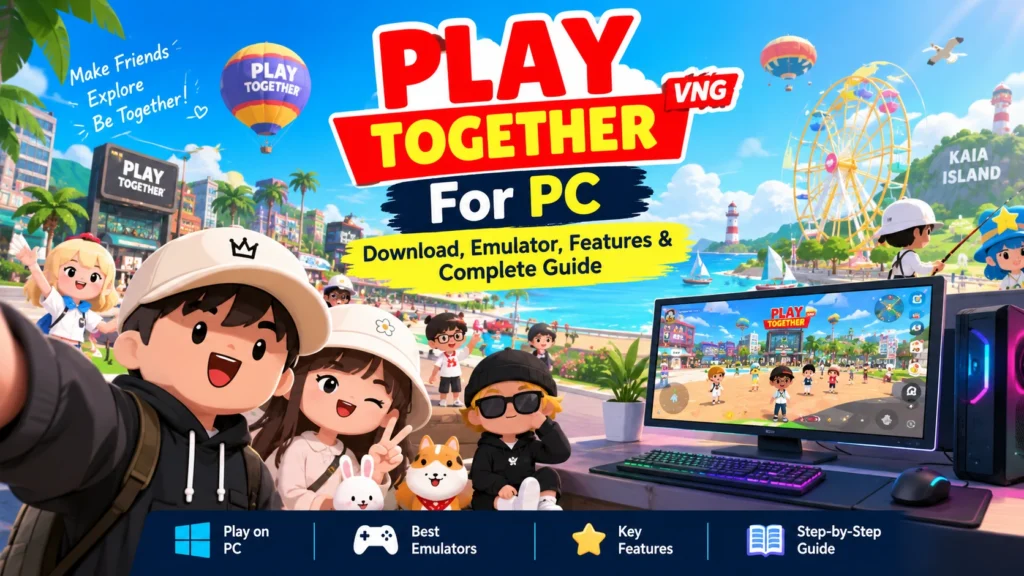
Play Together VNG For PC: Download, Emulator, Features & Complete Guide
Play Together VNG For PC allows players to enjoy the popular social simulation game on a Windows computer with a larger display, keyboard controls, and a more comfortable gaming setup. The VNG version can be played through compatible Android emulators such as BlueStacks, LDPlayer, and MEmu Play, allowing players to run the Android version on a PC.
Latest Play Together Codes – October 2026
| Code | Reward | Status / Expiry |
| PT26OCTMONTHLY | 30 Gems + 1 Super Premium Card Pack | ✅ Valid until Nov. 1, 2026, 00:00 UTC |
| PT26BATPET | 1 Happy Halloween Candy + 1 Lucky Star Box + 1 Lucky Gem Box | ✅ Limited; up to 70,000 claims or Oct. 15, 2026 |
| DOUBLE10HAPPY | 10 National Day Fireworks + 1 Taiwan Cheer Flag + 10 Beef Noodles + 1 Lucky Gem Box | ✅ Until Oct. 15, 2026 |
| PTGIANTVEGGIE | 1 Golden Chains Draw + 300 Vegetable Coins + 1 Super Premium Card Pack | ✅ Event-limited; reported until the next maintenance |
What Is Play Together VNG?
The game offers a relaxed style of gameplay rather than focusing entirely on traditional combat or competitive missions. Players can spend time fishing, playing mini-games, taking care of pets, decorating their homes, changing outfits, attending events, and interacting with friends.
VNG manages the localized version for Vietnam and regularly releases updates, events, new items, and gameplay improvements.
The official VNG website provides information about updates, events, support, and available game versions.
Can You Play Play Together VNG For PC?
Yes. Play Together VNG For PC can be played on Windows by using a compatible Android emulator that supports the game’s Android version.
An emulator such as BlueStacks, LDPlayer, or MEmu Play creates an Android environment inside Windows. You can then install the compatible Play Together VNG APK or use the emulator’s supported app installation method.
This setup is useful for players who specifically want the VNG mobile version on their computer.
There is also an official desktop release of Play Together available through Steam. However, players looking specifically for the VNG Android version may prefer the emulator method because it allows them to run the mobile edition rather than switching to another distribution.
How Does Play Together VNG Work on PC?
The process is relatively simple.
Your Windows computer runs the Android emulator, and the emulator provides the environment required for the Android application. Once the emulator is ready, the Play Together VNG APK can be installed inside it.
The basic setup looks like this:
Windows PC → Android Emulator → Play Together VNG APK → Game
The emulator handles Android-related functions while your computer provides the processor, RAM, graphics hardware, display, keyboard, mouse, and internet connection.
Best Android Emulators for Play Together VNG
Several Android emulators can be used for mobile gaming on Windows. The exact performance will depend on your computer and the emulator version.
BlueStacks
BlueStacks is one of the most recognized Android emulators for Windows. It provides keyboard mapping, multiple configuration options, graphics controls, and game-oriented features. For Play Together VNG, BlueStacks can be useful when you want to play on a large monitor while using keyboard and mouse controls.
LDPlayer
LDPlayer is another popular Android emulator designed around mobile gaming.
It provides keymapping, graphics settings, multiple-instance support, and other features intended for PC gaming.
Players with mid-range computers may also consider LDPlayer because emulator performance can vary considerably between different systems.
MEmu Play
MEmu Play is another option for running Android applications on Windows.
It provides keyboard controls, Android configuration options, and support for gaming applications.
The best emulator is not necessarily the same for every computer. Processor generation, RAM, graphics hardware, virtualization settings, and Windows configuration can all affect performance.
Play Together VNG APK For PC
The Play Together VNG APK is an Android application package. Windows does not normally open an APK directly like an EXE file. This is why an Android emulator is required when you want to use the Android APK on a Windows PC. After installing a compatible emulator, you can generally use its APK installation option to install the game.
Why Use an APK?
An APK can be useful when you specifically need the Android version of an application. For Play Together VNG, this can be relevant when the user wants the VNG mobile edition rather than another platform version. However, APK files should always be obtained from a trustworthy source. Modified or unofficial APK files can contain unwanted changes, so downloading random files from unknown websites is not recommended.
How to Download Play Together VNG For PC
If you want to run the Android version on Windows, follow these general steps.
Step 1: Check Your PC
Before installing an emulator, make sure your computer has enough RAM, storage, and processing power.
A computer with an SSD, sufficient RAM, and a reasonably modern processor will generally provide a smoother emulator experience than an older low-end system.
Step 2: Install an Android Emulator
Choose a reputable emulator such as BlueStacks, LDPlayer, or MEmu Play.
Download the emulator from its official website and complete the Windows installation.
Step 3: Open the Emulator
After installation, launch the emulator.
The first startup may take longer because the emulator needs to configure its Android environment.
Step 4: Install Play Together VNG
Use the emulator’s supported installation method to install the Play Together VNG Android application.
If you already have a legitimate APK file, many emulators provide an option to install an APK directly.
Step 5: Start the Game
After installation, open Play Together VNG from the emulator’s Android home screen or application list.
Step 6: Sign In
Use the supported account method associated with your game progress.
Never share your password, verification codes, or account recovery information with third-party websites claiming to provide game support.
Play Together VNG PC System Requirements
There is no single universal emulator requirement because every emulator has its own specifications. Performance also depends on the game version and your Windows configuration.
As a practical starting point, a PC with the following hardware can provide a more comfortable emulator experience.
| Component | Basic Setup | Better Experience |
| Operating System | Windows 10/11 | Updated Windows 10/11 |
| RAM | 4 GB | 8 GB or more |
| Processor | Modern dual/quad-core CPU | Modern Core i5/Ryzen 5 or better |
| Storage | HDD/SSD | SSD |
| Graphics | Integrated or dedicated GPU | Dedicated or newer integrated GPU |
| Internet | Stable connection | Stable broadband/Wi-Fi |
| Virtualization | Recommended | Enabled |
These figures should be treated as practical guidance rather than official VNG minimum requirements for every emulator configuration. The actual requirement can change depending on which Android emulator you choose.
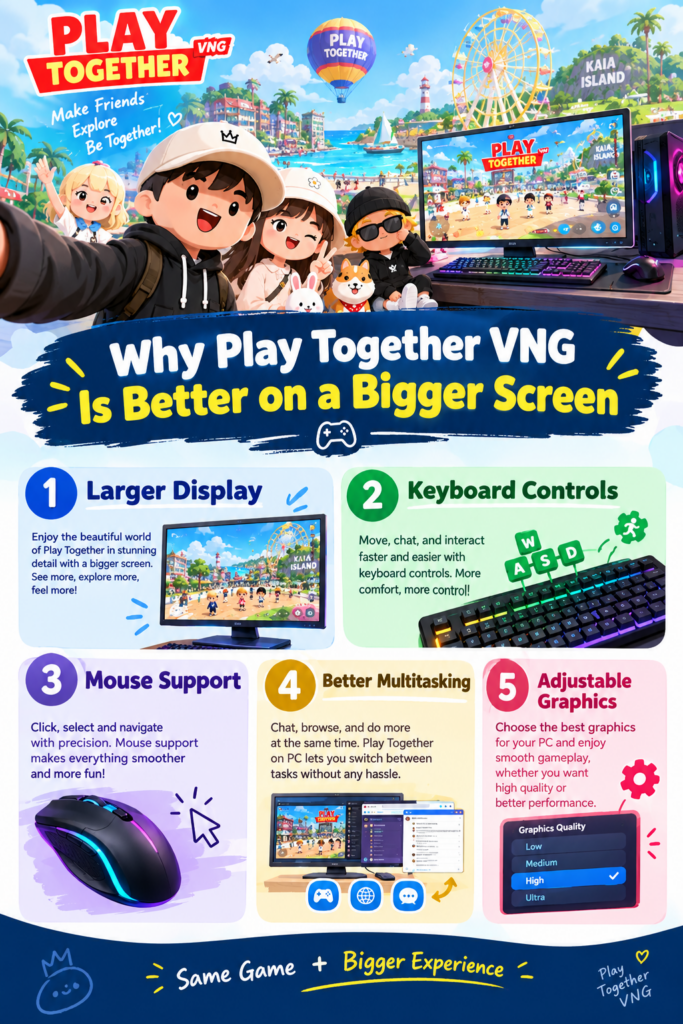
Why Play Together VNG Is Better on a Bigger Screen
The game has a colorful environment with numerous characters, locations, menus, items, and activities.
A larger PC display gives you more room to see the game world.
Larger Display
A monitor or laptop screen can provide a more comfortable view than a small phone display.
Keyboard Controls
Emulators allow players to map keyboard keys to touchscreen actions.
This can make movement and repeated actions easier for users who are accustomed to PC gaming.
Mouse Support
A mouse can make navigation and menu interaction more comfortable.
Better Multitasking
On a computer, you can easily switch between the game and other applications when necessary.
Adjustable Graphics
Depending on the emulator and hardware, players can adjust resolution, frame rate, rendering mode, and other settings to find a suitable balance between quality and performance.
Main Features of Play Together VNG
Play Together VNG combines social gameplay with casual activities and customization.
Character Customization
Players can create their own avatar and change its appearance with different outfits, hairstyles, accessories, and cosmetic items.
Character customization is one of the most enjoyable parts of the game because it allows players to create a style that matches their personality.
Social Interaction
The game allows players to interact with other people in the virtual environment.
You can meet friends, visit different areas, participate in activities, and spend time together.
Mini-Games
Play Together contains different mini-games that provide short activities alongside the game’s larger social world.
These mini-games help keep the gameplay varied.
Fishing
Fishing is a popular activity for players who enjoy collecting different types of fish.
It gives players something to do when they want a more relaxed activity.
Pets
Players can collect and interact with pets.
Pet-related content can also become part of seasonal events and updates.
Farming
Farming provides another casual gameplay system where players can grow crops and participate in agriculture-related activities.
Home Customization
Players can personalize their virtual homes with different furniture, decorations, and items.
Events
Seasonal and limited-time events regularly add new content, rewards, and activities.
This gives players additional reasons to return to the game after major updates.
Play Together VNG PC Keyboard Controls
One of the biggest advantages of using an emulator is customizable keyboard mapping.
Instead of touching a phone screen, you can assign different actions to keyboard keys.
A typical setup might include movement keys, action buttons, and menu shortcuts.
| Action | Example Control |
| Character Movement | WASD |
| Camera | Mouse |
| Interaction | E |
| Jump | Space |
| Menu | Esc |
| Additional Actions | Custom Keys |
How to Improve Play Together VNG PC Performance
If the game feels slow or produces frame drops, several basic adjustments can help.
Enable Virtualization
If your processor supports hardware virtualization, enabling it in the BIOS/UEFI can improve Android emulator performance.
The exact setting name depends on your motherboard and processor.
Close Background Programs
Browsers, video editors, launchers, and other applications can consume RAM and CPU resources.
Closing unnecessary programs can free resources for the emulator.
Use an SSD
Installing Windows and the emulator on an SSD can reduce loading times compared with an older mechanical hard drive.
Adjust Emulator RAM
Do not automatically assign all available RAM to the emulator.
Leave enough memory for Windows and other required processes.
Reduce Resolution
If your computer struggles with performance, lowering the emulator resolution can reduce the workload.
Reduce Frame Rate
A lower frame-rate setting may provide more stable gameplay on weaker hardware.
Play Together VNG For PC vs Mobile
| Feature | PC Through Emulator | Mobile |
| Screen | Larger | Smaller |
| Controls | Keyboard + mouse | Touchscreen |
| Portability | Limited | Excellent |
| Multitasking | Easier | More limited |
| Storage | PC storage | Phone storage |
| Performance | Depends on PC | Depends on phone |
| VNG APK | Can be installed through emulator | Direct Android installation |
Both options provide access to the Android experience, but they are designed for different types of players.
If you spend most of your gaming time at a desk, PC gaming can be more comfortable.
If you want to play anywhere, a smartphone remains more convenient.
Play Together VNG For PC vs Official PC Version
This is an important difference.
| Feature | VNG Android + Emulator | Native PC Version |
| Android APK | Yes | No |
| Emulator | Required | Not required |
| Windows | Yes | Yes |
| Keyboard | Through emulator mapping | Native PC controls |
| Mobile Environment | Yes | No |
| Setup | More steps | Simpler |
| Best For | VNG Android experience | Direct PC gaming |
If your main goal is specifically to access the VNG Android version, an emulator makes sense.
If your goal is simply to play Play Together on Windows with the least complicated setup, the official desktop release may be more convenient.
Frequently Asked Questions
Conclusion
Play Together VNG for PC is a practical option for players who want to experience the VNG Android edition on a Windows computer. Using an emulator such as BlueStacks, LDPlayer, or MEmu Play provides a larger display, keyboard mapping, mouse support, and adjustable performance settings.
The main thing to remember is that the VNG APK is an Android application. It cannot normally be opened directly by Windows, which is why an Android emulator is used to create the required environment. For players who specifically want the VNG mobile experience, the emulator method can be a convenient solution. On the other hand, anyone who simply wants to play Play Together on a computer can also consider the game’s native PC release. Whichever option you choose, keep the game and emulator updated, use legitimate installation files, protect your account details, and configure the emulator according to your PC’s hardware. With the right setup, the larger screen and customizable controls can make Play Together much more comfortable to enjoy on Windows.
My Personal Experience
From my experience with PC gaming, social simulation games are often more comfortable on a larger display because there is more space for the environment, menus, and character interactions.
When using an Android emulator, I especially notice the difference in controls. On a phone, movement and interaction depend completely on touchscreen controls, while on PC I can assign important actions to keyboard keys and use the mouse for navigation.
I also prefer keeping emulator settings balanced instead of simply choosing the highest graphics configuration. A stable frame rate is more useful than maximum graphics quality when the computer has limited hardware.
Another thing I recommend is keeping the setup simple. If you specifically need the VNG Android version, use a reputable emulator and a legitimate APK. If you only want the regular desktop experience, the native PC release can save you from dealing with an additional Android layer.