How to Add Coupon Code in Play Together Application
Coupon codes in Play Together are free promotional codes released by the developers that give you rewards like Gems, Star Coins, outfits, furniture, tickets, and event items. Adding a coupon code takes less than a minute once you know where the option is hidden.
In this guide I will show you exactly how to add a coupon code in the Play Together application on Android and iOS, where your rewards go, and how to fix common errors.
✅ Tip: Complete the Tutorial First
The coupon option unlocks only after you finish the game’s tutorial stage. If you do not see the Coupon button in Settings, complete the tutorial first and check again.
What Is a Coupon Code in Play Together?
A coupon code (also called a redeem code or promo code) is a short text code published by the Play Together team during updates, events, celebrations, and livestreams. Each code can be used once per account and gives a fixed set of rewards. Codes expire, so using them quickly matters.
How to Add Coupon Code in Play Together on Android
Follow these steps inside the app:
Step 1: Open Play Together
Launch the game on your Android device and wait until you are in the main game world.
Step 2: Tap the Phone Icon
Tap the Phone icon in the top-right corner of the screen to open the phone menu.
Step 3: Open Settings
At the bottom of the phone menu, tap the Settings button.
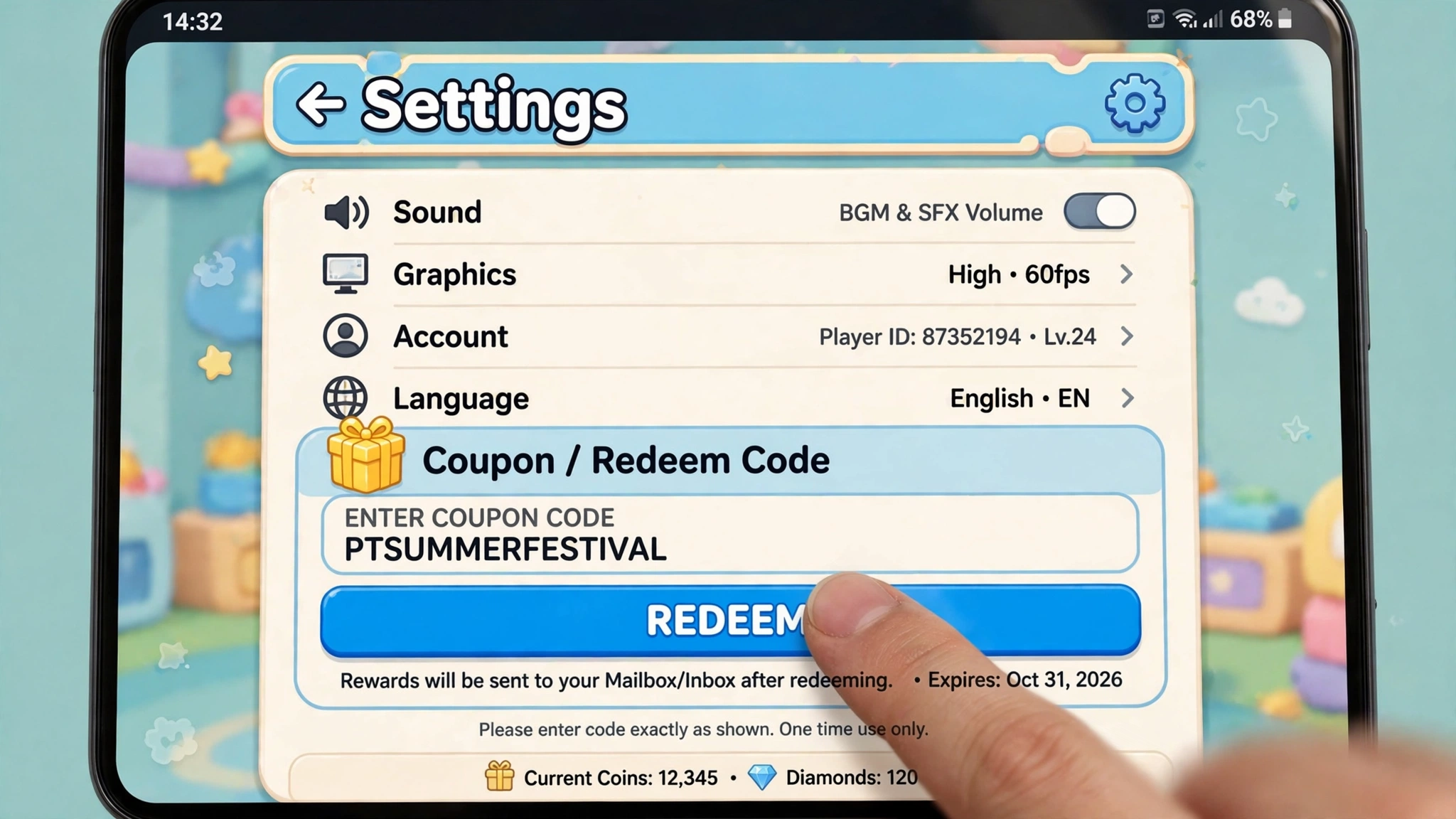
Step 4: Tap the Coupon Button
In the settings window, find the blue Coupon button near the bottom-right and tap it.
Step 5: Enter Your Code
Type the coupon code carefully into the text box. Codes are case-sensitive, so copy-paste is safer than typing.
Step 6: Tap Redeem
Press the Redeem button. If the code is valid, your rewards are sent to your in-game mailbox immediately.
How to Add Coupon Code in Play Together on iOS
Apple’s policies do not allow in-app coupon redemption, so iOS players use the official website. If you play on iPhone or iPad, you can also check our Play Together for iOS guide.
ℹ️ Note: iOS Players Must Use the Website
Apple does not allow in-app coupon redemption. On iPhone and iPad, you cannot add a coupon code inside the Play Together app — redeem it on the official website instead, then collect your rewards from the in-game mailbox.
Step 1: Open the Official Redemption Page
In your browser, open the official Play Together coupon page (haegin.kr/playtogether/coupon).
Step 2: Enter Your Coupon Code
Type your code into the coupon field on the page.
Step 3: Confirm and Check Your Mailbox
Tap OK to confirm, then open Play Together and check your in-game mailbox for the rewards.
⚠️ Warning: Codes Are One-Time Use and Expire Fast
Each coupon code can be redeemed only once per account, and most codes expire within days or weeks. Redeem a new code as soon as you find it — waiting too long means the code may stop working.
Where Do Coupon Rewards Go?
Coupon rewards do not appear directly in your inventory. They are delivered to your in-game mailbox. Open the mailbox, open the reward message, and claim the attached items. Claim them before they expire — unclaimed mailbox rewards can be deleted after the claim period ends.
Requirements Before Adding a Coupon Code
- Finish the game’s tutorial stage first; the coupon option unlocks after that.
- Each code works once per account.
- You need an active internet connection.
- The game must be updated to the latest version that supports the code.
Common Coupon Code Errors and Fixes
Code Not Working or Invalid
Double-check spelling and capital letters. Make sure there are no extra spaces when pasting.
Code Already Redeemed
Each code works once per account. If you already used it, it will not work again.
Code Expired
Most codes have an expiry date. Old codes from months ago usually no longer work.
Coupon Button Not Showing
Make sure you finished the tutorial and the game is updated to the latest version. Restart the app and try again.
Where to Find Working Coupon Codes
The safest sources are the official Play Together social pages (Facebook, Instagram, YouTube, Discord) and our own codes page at CodePlayTogether.codes, where active and expired codes are listed separately. Avoid random code lists — many are outdated.
My Personal Experience Adding Coupon Codes
I add coupon codes the same day they release because most expire within days or weeks. My routine: copy the code from a trusted source, open the phone menu, go to Settings, tap Coupon, paste, redeem, then immediately open the mailbox and claim. Doing it right away means I never lose rewards to expiry. For iOS, I keep the official redemption page bookmarked.
Frequently Asked Questions
Final Words
Adding a coupon code in Play Together takes less than a minute: Phone, Settings, Coupon, enter code, Redeem — then check your mailbox. iOS players use the official website instead. Use codes quickly before they expire, and always get them from trusted sources like CodePlayTogether.codes.